![ES_Primary_Logo.png]](https://info.energysage.com/hs-fs/hubfs/ES_Primary_Logo.png?height=40&name=ES_Primary_Logo.png)
In this Article
- Introduction
- Step-by-Step Instructions
- Stage 1: Plan Your Video
- Stage 2: Record and Export to Spec
- Stage 3: Submit Your Video to EnergySage
- Stage 4: Promote Your Video Across EnergySage
- FAQs or Troubleshooting
- How to Get Help
Introduction
A short video shows shoppers who you are in a way that reviews and quote details can't. In under a minute, you can introduce your team, explain your approach, and give customers a reason to choose you.
This article covers what to include, the technical specs your video needs to meet, and how to add it to your Company Profile, your quotes, and your messages. You don't need a production crew — a well-lit smartphone video with clear audio works, as long as it meets the specs below.
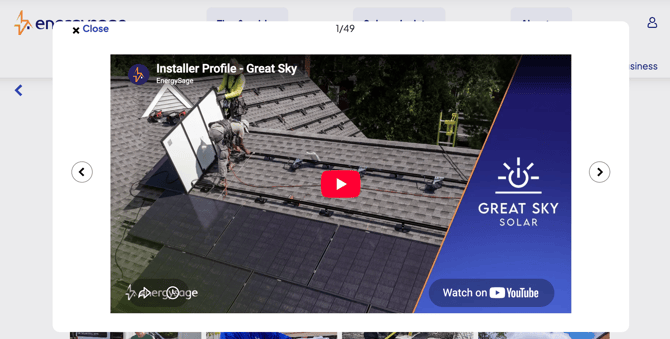
Want to see what a finished video looks like first? ▶️ Watch an example video.
Step-by-Step Instructions
Creating your video happens in four stages: planning your content, recording and exporting to spec, submitting the finished file to EnergySage, and promoting your video everywhere shoppers will see it.
Stage 1: Plan Your Video
1. Decide what to cover
Keep the video focused on the handful of things a shopper actually wants to know. Cover:
- Who your company is — your name, how long you've been in business, and what you specialize in
- Your location and the regions you serve on EnergySage
- Why you'd like to work with the customer
- Your approach and what makes you unique — the same UVPs that set you apart in a quote comparison
- Any unique or fun details that will help you stand out and feel human
- Tip: Write a short script and read it out loud with a timer. One minute of natural speech is roughly 130–150 words, so you have room for about five solid points.
2. Choose who appears on camera
- Pick someone customers would actually meet — an owner, founder, or a sales rep who handles EnergySage leads
- Speaking directly to the camera builds more trust than voiceover alone
- Tip: Footage of your crew on a real installation, your warehouse, or your trucks makes a strong backdrop between talking-head shots.
3. Download the EnergySage motion graphic & video thumbnail image
Download the thumbnail image here: 🔽 EnergySage video thumbnail - don't forget to add your logo on the right, and installation image on the left!
Every profile video must end with the EnergySage motion graphic. Download it before you start editing so you can drop it onto the end of your timeline.
Download the motion graphic here: 🔽 EnergySage motion graphic
- Important: The motion graphic is the final shot of the video. Don't place it at the beginning or cut it short.
- Editing note: In your editing software, the graphic should be placed on the track above your last shot of the video, and begin at least 10 frames before the end of that last video clip. There is a built-in transition that requires video frames under it for the effect to work correctly.
Stage 2: Record and Export to Spec
Videos that don't meet these specs may not display correctly on your profile, so check each one before you export.
4. Record in 16:9 at the right resolution
- Shoot horizontally in a 16:9 aspect ratio
- 3840 x 2160 px (4K) is preferred
- 1920 x 1080 px (HD) is the minimum
- Warning: Vertical video shot for social media won't work here. If you're filming on a phone, turn it sideways.
5. Keep the run time to one minute or less
- Aim for 60 seconds or under
- Shorter is fine — a tight 40-second video beats a rambling 90-second one
6. Add your logo as a bug
- Place your company logo in the lower left corner of the frame
- Keep it small and semi-transparent so it doesn't compete with your footage
7. Check your audio levels
- Audio peaks should land around -3 dB
- Record somewhere quiet — wind, traffic, and echo are the most common reasons a video feels unprofessional
- Tip: An inexpensive lavalier mic clipped to your shirt will improve your audio far more than a better camera will.
8. Export your final file
- Compression: H.265
- Bitrate: 20 Mbps
- File size: under 1 GB
- Format: .mp4
9. Name your file correctly
Use this naming convention so we can route your file quickly:
ES_Installer Profile_Company Name_Date.mp4
Example: ES_Installer Profile_Bright Home Solar_08142026.mp4
Stage 3: Submit Your Video to EnergySage
10. Send us your finished video file
You don't need your own hosting or YouTube channel. Submit your video to EnergySage and we'll publish it to YouTube for you on the EnergySage channel.
Submit your video here: ⚠️ EnergySage installer video submission form
- Upload your exported .mp4 using the naming convention from Step 9
- We'll publish the video to YouTube under the EnergySage channel
- We'll then send you the YouTube URL for your video
- Important: Hold on to that YouTube link. It's what you'll use to add the video to your profile, your quotes, and your messages in Stage 4.
Stage 4: Promote Your Video Across EnergySage
Once you have your YouTube link from EnergySage, you can put it to work in three places. Each one reaches shoppers at a different point in their decision, so we recommend using all three.
11. Add your video to your Company Profile
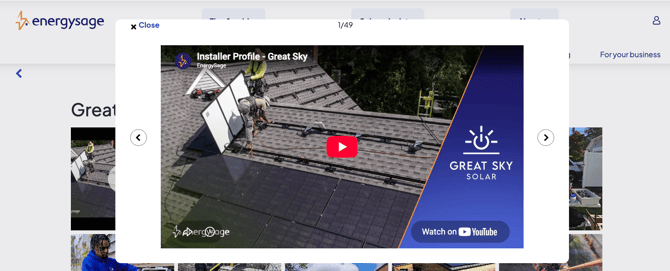
A video in your gallery helps your profile stand out from other installers a shopper is considering.
- Go to Edit Your Profile and select "Add Photos & Video to Gallery"
- Add your video using the YouTube link we sent you
- Use Edit & Reorder Gallery to move the video to the top of your gallery
- Tip: Keeping the video first in your gallery means it's the first thing a shopper sees when they open your profile.
12. Attach your video to your quotes
Adding your video as a quote attachment puts it in front of shoppers at the moment they're comparing you against other installers.
- Go to Settings, then Your Packages > Attachments > Add
- Build an attachment package that includes your YouTube video link
- Apply that attachment package to the quotes you send
- Important: If you use AutoQuote, edit your AutoQuote settings to select this attachment package. That way your video is automatically included on every AutoQuote you send.
13. Share your video link in Messages
- Send shoppers the YouTube link to watch your video directly within Messages
- Tip: This works well in your first response to a new lead, alongside your introduction.
FAQs or Troubleshooting
Do I need to hire a professional videographer?
No. A modern smartphone shooting in 4K, good natural light, and a clip-on microphone will get you a video that meets spec. What matters most is that your audio is clean and your message is clear.
How long should my video be?
One minute or less. Shoppers are comparing several quotes at once, so a short, focused video is more likely to be watched all the way through.
Can I use a vertical video I already made for social media?
No. Profile videos need to be horizontal 16:9 to display correctly in your gallery. If you have existing footage, it will need to be reframed and re-exported.
Do I have to include the EnergySage motion graphic?
Yes. Every installer profile video ends with the same motion graphic for a consistent shopper experience across the Marketplace. Download it from the link in Step 3.
My exported file is over 1 GB. What should I do?
Confirm you exported using H.265 compression at 20 Mbps rather than a higher-bitrate or uncompressed setting. If the file is still too large, trimming run time closer to 60 seconds will usually bring it under the limit.
Do I need my own YouTube channel or video hosting?
No. Submit your file through the form in Step 10 and EnergySage will publish it to YouTube on our channel, then send you the link to use across the Marketplace.
How will I get my video link?
After you submit your file, we publish the video to the EnergySage YouTube channel and send you the YouTube URL. Use that URL for your profile gallery, your quote attachment package, and your messages to shoppers.
Where will shoppers actually see my video?
In three places: your Company Profile gallery, as an attachment on the quotes you send, and anywhere you share the link in Messages. All three use the YouTube link EnergySage sends you after we publish your video. Steps 11 through 13 cover how to set up each one.
Can I update or replace my video later?
Yes. Submit your new video through the same form and we'll publish it and send you an updated YouTube link. Remember to swap the new link into your profile gallery and your attachment package so shoppers see the current version. Many installers refresh their video once a year.
Should I mention pricing or current promotions?
We recommend against it. Pricing and promotions change, and your quotes already communicate them. Keep the video focused on who you are and how you work so it stays accurate longer.
How to Get Help
For questions about your video — including specs, submitting your file, getting your YouTube link, or feedback on a draft — reach out to your Partner Success Manager.