![ES_Primary_Logo.png]](https://info.energysage.com/hs-fs/hubfs/ES_Primary_Logo.png?height=40&name=ES_Primary_Logo.png)
- What's Changed?
- Why Did We Make This Change?
- How It Works
- How to Learn More
What's Changed?
- Battery storage rebates and incentives can now be represented on any quote that includes a battery.
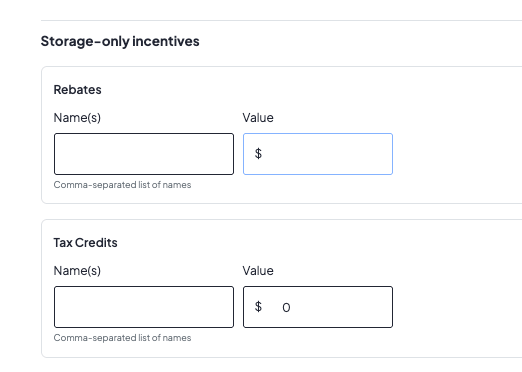
- Storage incentives can be set up in an incentive package for the first time, so they apply automatically every time that package is used — including on AutoQuotes.
- You can also continue to add or adjust a storage incentive directly on an individual quote.
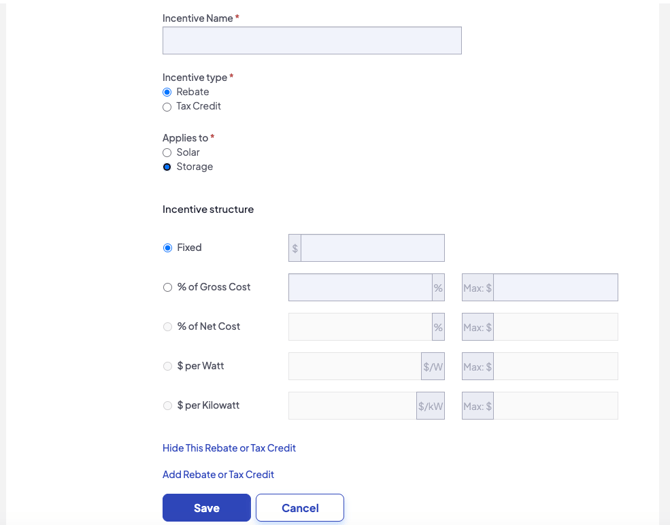
- Incentives are now assigned to either solar or storage using an Applies to toggle.
Why Did We Make This Change?
Previously, local incentives like rebates could only be applied to the solar portion of a quote. That made it difficult to accurately represent programs tied specifically to battery storage.
Now that an incentive can be tied to the storage portion of the quote, shoppers can see that the savings are attached to the battery — making it clear they’ll only qualify if they choose solar plus storage, not solar alone.
How It Works
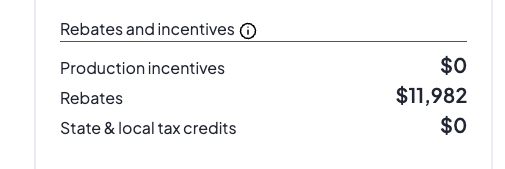
- When a quote includes a battery, storage rebates and incentives are calculated against the battery’s price and shown on the quote alongside your solar incentives.
- Storage rebates reduce the price of the battery up front, and they reduce the amount financed when the battery is on a loan.
- Each storage incentive is entered as either a fixed dollar amount or a percentage of the storage gross cost, with an optional maximum cap.
- If a quote doesn’t include a battery, or the shopper toggles to Solar-Only, the storage incentives are simply not applied — nothing to turn off or configure.
Option 1: Add it to an incentive package
Once saved, the incentive applies automatically anytime that package is used — including on AutoQuotes.
- Go to Settings > Your Packages > Incentives.
- Create a new incentive package, or edit an existing one.
- Add an incentive and select Storage under the Applies to toggle.
- Choose the incentive type.
- Enter a fixed dollar amount or a percentage of the storage gross cost, and set a maximum cap if the program has one.
- Save your package.
Note: If you want this Incentive Package to be used for AutoQuotes, you'll need to Edit your AutoQuote setting and make sure this Incentive Package is selected.
Option 2: Add it directly to a quote
Best for manual quoting or adjusting an amount before you send. Edit the quote, add or update the incentive, and set it to apply to storage.
How it Appears on Quotes
How to Learn More
For questions about setting up storage incentives, reach out to your Partner Success Manager. You can also visit the Partner Resource Center for related articles, including How to Set Up and Use AutoQuote.