![ES_Primary_Logo.png]](https://info.energysage.com/hs-fs/hubfs/ES_Primary_Logo.png?height=40&name=ES_Primary_Logo.png)
In this Article
- Introduction
- Step-by-Step Instructions
- Stage 1: Creating TPO Packages
- Stage 2: Submitting Quotes Manually with TPO
- Stage 3: AutoQuoting with TPO
- FAQs or Troubleshooting
- How to Get Help
Introduction
Offering Lease and PPA (Power Purchase Agreement) financing options—also known as Third-Party Ownership (TPO)—allows you to reach a wider range of homeowners, including those who prefer little to no upfront cost. By quoting TPO options on EnergySage, you can differentiate your offerings, increase your close rate, and provide customers with flexible financing that makes going solar more accessible.
This article will walk you through three key stages: creating TPO packages in your settings, submitting quotes manually with TPO financing, and configuring AutoQuote to include TPO options automatically. Whether you work with integrated providers like GoodLeap or LightReach, or use a custom TPO provider, this guide covers everything you need to get started.
Step-by-Step Instructions
Setting up and quoting TPO involves three main stages: configuring your TPO packages, submitting quotes with TPO options, and enabling TPO through AutoQuote. Follow the steps below to get started.
Stage 1: Creating TPO Packages
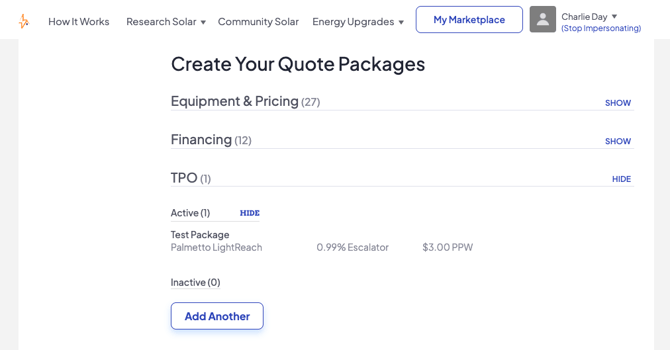
Before you can submit a TPO quote, you need to create at least one TPO package. This is where you define the financing terms that will appear on your quotes. You can create as many TPO packages as you need—this is especially useful if you have different TPO pricing for different markets or providers.
- Access Your TPO Package Settings
- Log in to EnergySage and hover over your name in the top navigation.
- Click on “Settings” from the dropdown menu.
- Select “Your Packages” and then navigate to the “TPO” tab.
- Tip: Only admin users can access and configure TPO package settings. If you don’t see these options, contact your account administrator.
- Choose Your TPO Provider Type
- If you use GoodLeap or LightReach as your TPO provider, EnergySage has built API connections with both providers. This allows us to fetch exact offers directly from the provider and check the property’s eligibility automatically. Before setting up your packages, please reach out to your Partner Success Manager to confirm the API connection is active.
- For all other TPO providers, you can create custom packages with your own terms and pricing.
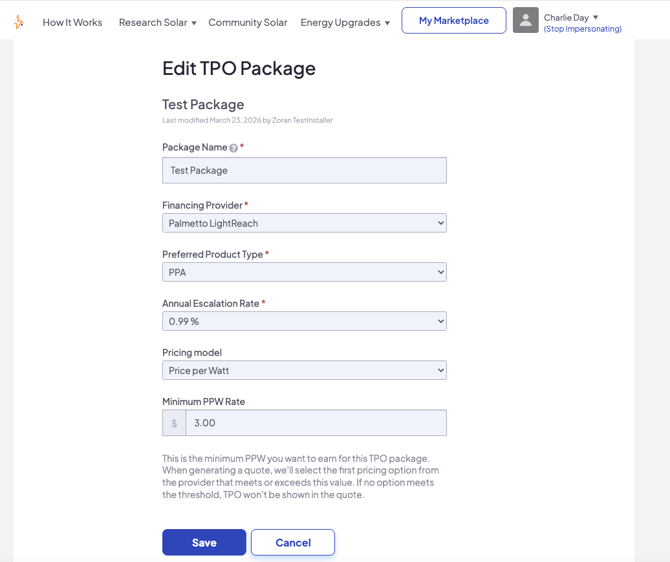
- Create a Custom TPO Package
To create a custom TPO package, you will need to provide the following information:
- Provider Name: Enter the name of your TPO financing provider.
- Financing Type: Select either PPA or Lease.
- Escalation Rate: Set the annual escalation rate for the agreement.
- Price per kWh: Input the cost in dollars per kWh (not $/watt).
- Monthly Battery Price: If applicable, enter the monthly cost to add battery storage.
- Lease Duration: Specify the lease or PPA term in years.
- Additional Notes: Add any supplementary details about the package.
- Important: Pricing must be entered as $/kWh, not $/watt. Double-check this value before saving your package.
Stage 2: Submitting Quotes Manually with TPO
Once your TPO packages are set up, you can include TPO financing on any quote you submit manually. Here’s how:
- Begin Your Quote as Usual
- Navigate to the lead you want to quote and begin building your quote as you normally would.
- Select TPO Under Financing Options
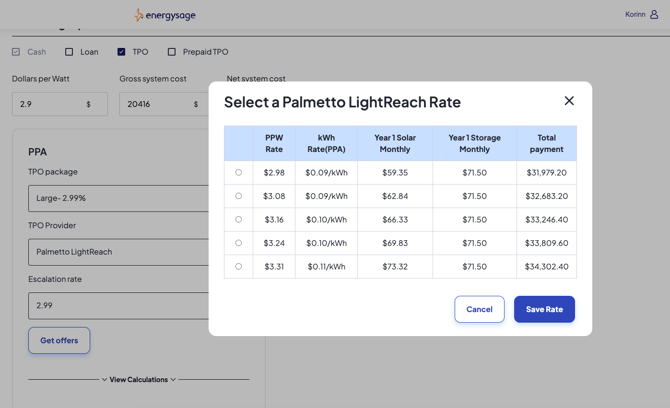
- In the Financing Options section of the quote form, check the TPO checkbox to include a Lease or PPA option on your quote.
- Tip: You can select up to 4 financing options per quote. This means you can offer Cash, Loan, TPO, and Prepaid TPO all on the same quote—giving the homeowner a comprehensive view of their options.
- Choose Your TPO Package
- Select the TPO package you want to apply from the dropdown. Ideally, you will have already created your TPO packages under Settings > Your Packages > TPO.
- Adjust the Escalation Rate (Optional)
- Before submitting, you can modify the escalation rate for this specific quote if needed. This allows you to tailor the offer to the individual customer.
- Submit Your Quote
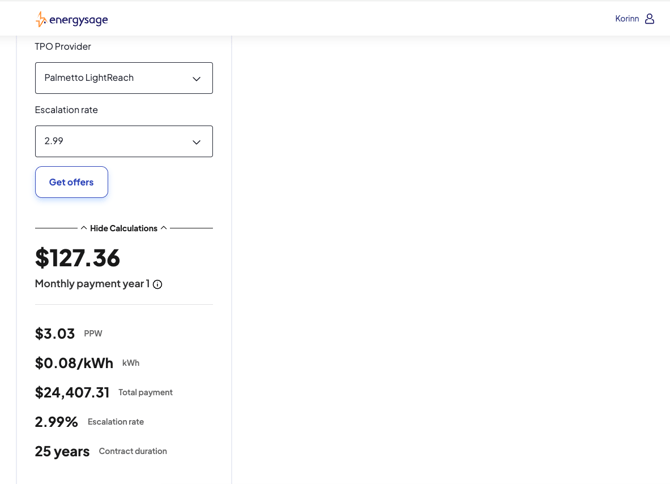
- Review all details and submit. The TPO option will appear alongside any other financing options you selected.
Note for GoodLeap and LightReach users: When you submit a quote with TPO, the EnergySage API will automatically check the property’s eligibility with your provider. If the homeowner isn’t eligible for TPO (for example, due to their utility), the TPO offer will not be added to the quote. Make sure your API connection is set up before quoting—reach out to your Partner Success Manager to confirm.
Stage 3: AutoQuoting with TPO
If you use AutoQuote, you can configure it to automatically include a TPO option on your quotes. This ensures every qualifying lead receives a TPO offer without any manual effort.
- Ensure Your TPO Packages Are Built
- Before configuring AutoQuote for TPO, make sure you have created at least one TPO package under Settings > Your Packages > TPO (see Stage 1 above).
- Access Your AutoQuote Settings
- Navigate to Settings > Auto-Quoting.
- Select the AutoQuote setting you want to edit, or create a new one.
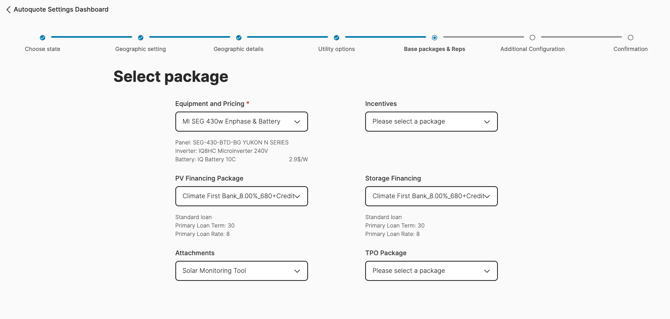
- Select a TPO Package for AutoQuote
- Within the AutoQuote setting, select 1 TPO package to use. AutoQuote will add the TPO option to the quote automatically if the homeowner’s property qualifies.
- Important: Each AutoQuote setting supports one TPO package. If you serve multiple markets with different TPO pricing, create separate AutoQuote settings for each market and assign the appropriate TPO package to each.
- Activate and Monitor
- Once activated, AutoQuote will automatically include the TPO offer on qualifying leads. Monitor your dashboard to review AutoQuoted leads and personalize follow-ups as needed.
- Tip: For more details on configuring AutoQuote settings including geographic targeting, system size ranges, and team member assignments, see our How to Set Up and Use AutoQuote article in the Partner Resource Center.
FAQs or Troubleshooting
What is the difference between a Lease and a PPA?
With a Lease, the homeowner pays a fixed monthly amount for the solar system. With a PPA (Power Purchase Agreement), the homeowner pays a per-kWh rate for the energy the system produces. Both options allow the homeowner to go solar with little to no upfront cost.
What is Prepaid TPO?
Prepaid TPO is a financing option where the homeowner pays for the lease or PPA term upfront in a single payment. This can result in lower overall costs compared to monthly payments while still keeping the benefits of third-party ownership.
Can I offer multiple financing options on the same quote?
Yes. You can select up to 4 financing options per quote, including Cash, Loan, TPO, and Prepaid TPO. This gives homeowners a side-by-side comparison of their choices.
I use GoodLeap or LightReach. Do I need to create a custom TPO package?
No. EnergySage has built API connections with both GoodLeap and LightReach, so exact offers are fetched directly from the provider. However, you must ensure the API connection is active—reach out to your Partner Success Manager to confirm setup.
What happens if a homeowner isn’t eligible for TPO?
If you’re using the GoodLeap or LightReach API integration, the system will automatically check the property’s eligibility. If the homeowner doesn’t qualify (for example, due to their utility provider), the TPO option simply won’t be added to the quote.
Why should I enter pricing as $/kWh instead of $/watt?
TPO pricing is based on the cost of energy produced, not the cost of equipment. When creating custom TPO packages, make sure to input the price in dollars per kWh to accurately reflect the Lease or PPA terms.
Can I use different TPO packages for different AutoQuote settings?
Yes. Each AutoQuote setting supports one TPO package, so you can create separate AutoQuote settings for different markets and assign the appropriate TPO package to each.
Can I change the escalation rate on a per-quote basis?
Yes. When submitting a quote manually, you can adjust the escalation rate before submitting. This allows you to tailor your TPO offer for individual customers.
How to Get Help
For help setting up TPO packages, configuring API connections with GoodLeap or LightReach, or questions about quoting Lease and PPA options, reach out to your Partner Success Manager.